| 1. Stop Using the Device | Internal drive, external hard drive, USB flash drive, or memory card | No scan yet; disconnect the device from unnecessary applications | Prevents new data from overwriting deleted file content | Not applicable | Recover as soon as possible |
| 2. Select the Storage Location | Visible partition, removable drive, or detected physical disk | Choose the location where the file was originally stored | Existing folders, partitions, deleted entries, and available free space | Confirm the correct drive capacity and file system before scanning | Save recovered files to a different drive |
| 3. Run a Quick Scan | Recently deleted files on a readable file system | File-system scan using directory records and recently available metadata | Original filenames, folder paths, file dates, and recently deleted entries | Check whether the filename, type, and file size appear correct | Use this first because it is usually faster |
| 4. Run a Deep Scan | Formatted, corrupted, or severely damaged partitions | Sector-by-sector search for recognizable file signatures | File fragments and file types even when folder names or metadata are missing | Open a sample of recovered files to verify readability | Results may have generic names or incomplete content |
| 5. Filter the Results | Any scanned storage source | Filter by file category, extension, date, size, or folder | Common categories such as documents, photos, videos, audio, archives, and email files | Compare file size and modification date with the original file | Prioritize important files before low-value duplicates |
| 6. Preview Recoverable Files | Files detected by the quick or deep scan | Use the built-in preview function when available | Readable image thumbnails, document text, video frames, or audio details | A successful preview is a useful sign that the file is not completely corrupted | Select files only after previewing them |
| 7. Recover to Safe Storage | Recovered data from the scanned device | Export selected files to another internal drive, external drive, or network location | Files that remain readable after being copied from the source | Open the saved copy and verify its size, format, and contents | Never save recovered data back to the source device |
| 8. Check File-System Limits | Storage formatted with NTFS, FAT32, exFAT, ext4, APFS, or another file system | Use a tool that supports the detected file system and operating environment | Recovery quality depends on file-system metadata, fragmentation, and overwrite activity | Preview results can vary by file type and file-system condition | Support differs between recovery tools and operating systems |
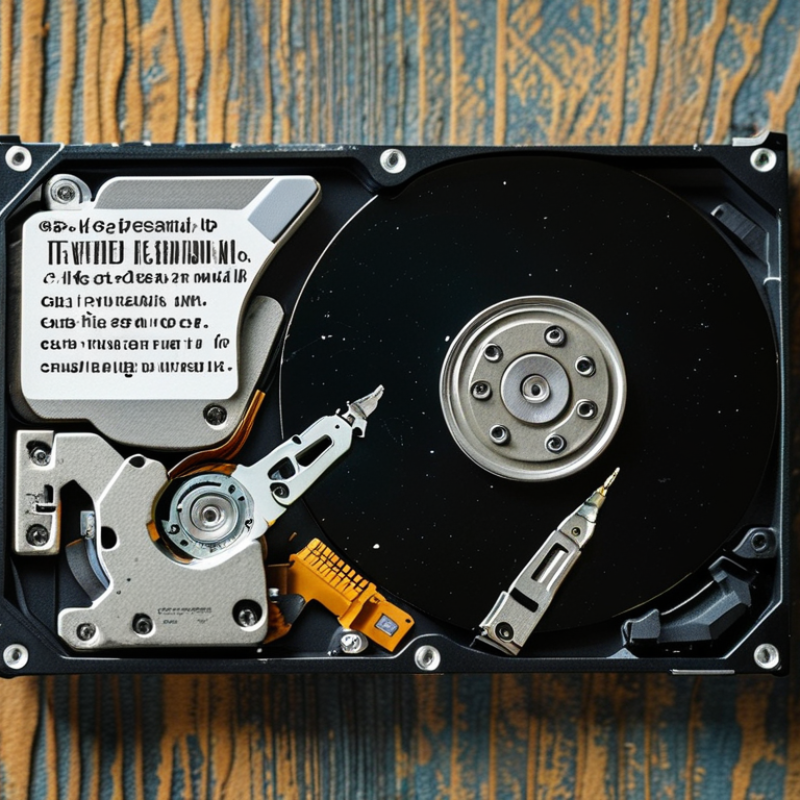
| 9. Handle Physical Damage | Clicking, overheating, intermittent, or undetected drives | Stop software scans if the device makes unusual sounds or repeatedly disconnects | Software may not reliably read sectors from physically failing media | Do not repeatedly reconnect a damaged drive to test it | Consider professional recovery for physical failure |